ERPL-ADT Quick Start (CLI + MCP)
In this 5-minute tutorial you'll install erpl-adt, save your SAP credentials, search ABAP objects, read source with syntax highlighting, and wire the MCP server into Claude Code so your AI agent can do all of the above.
- A SAP ABAP system reachable by HTTPS (ABAP Cloud Developer Trial, S/4HANA, BW/4HANA, or a partner sandbox — anything that exposes the ADT REST API)
- Login credentials for that system
- For Step 5: an MCP-capable client like Claude Code, Cursor, or Gemini CLI
Step 1: Install ERPL-ADT
The fastest path — no install:
uvx erpl-adt --help
Or install permanently:
pip install erpl-adt
Or download a static binary from the latest release (Linux x86_64, macOS arm64/x86_64, Windows x64).
erpl-adt --version prints a date-based version like 2026.05.16. The binary is statically linked — no JVM, no SAP NW RFC SDK, no Eclipse.
Step 2: Save Your Connection
Run login once. It writes ~/.adt.creds (chmod 600) so you don't have to repeat the connection flags every time.
erpl-adt login \
  --host sap.example.com \
  --port 44300 \
  --https \
  --user DEVELOPER
# (prompts for the password)
For CI or one-off calls, skip login and pass the password via env:
SAP_PASSWORD='…' erpl-adt search 'ZCL_*' --host sap.example.com --https
Want object descriptions in another logon language? Add the global --language flag (2-letter ISO, default EN) to any command — it's sent as the SAP logon language, so descriptions come back translated:
erpl-adt search 'ZCL_*' --language DE
erpl-adt discover services returns a list of ADT services. If you see an authentication error, verify the password; if you see a TLS warning, add --insecure for self-signed certificates (dev only).
Step 3: Search ABAP Objects
The smallest useful command: pattern + type + max.
erpl-adt search 'CL_DEMO_*' --type CLAS --max 8
You'll see a table like this:
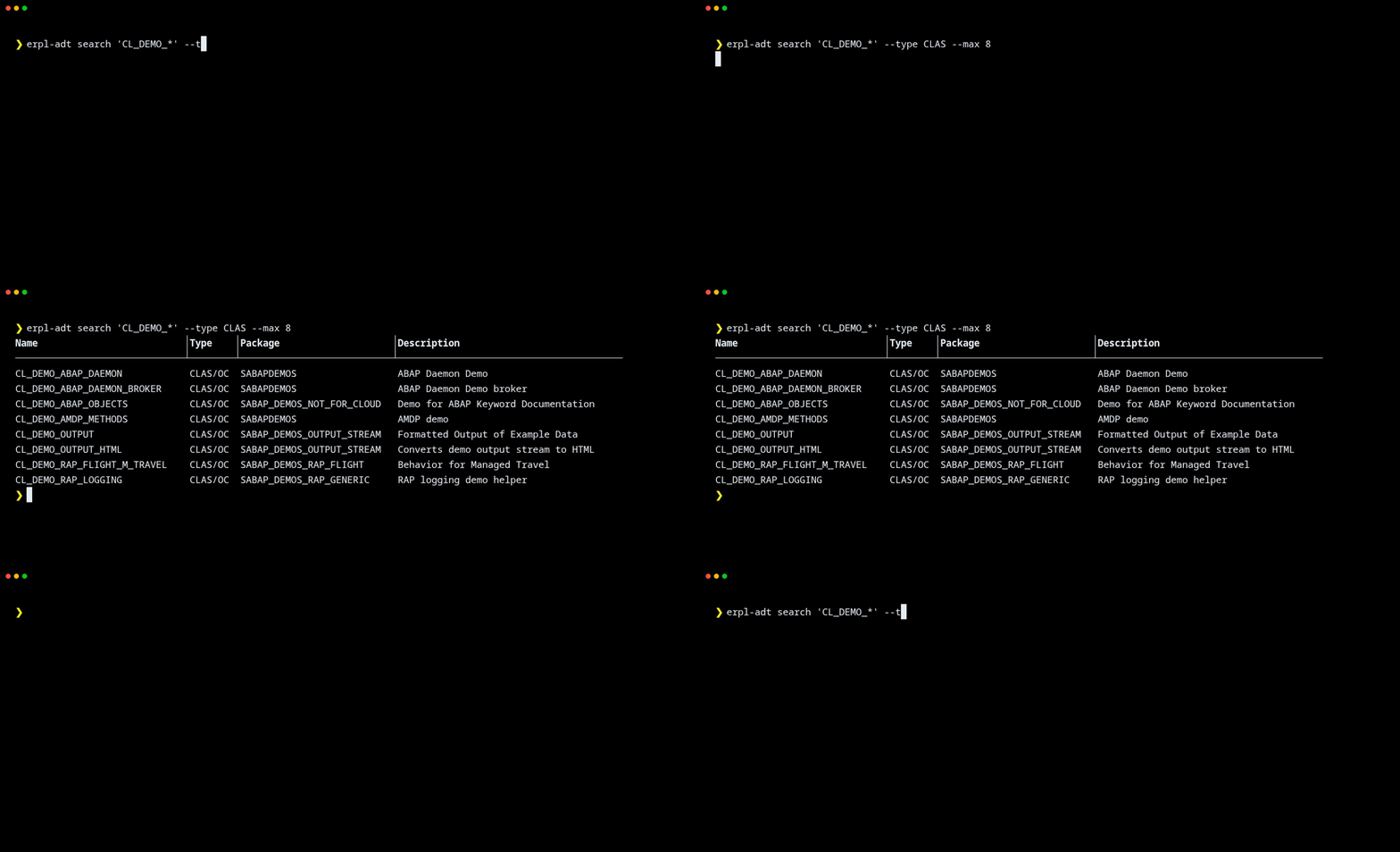
Add --json if you want to pipe into jq:
erpl-adt --json search 'CL_DEMO_*' --type CLAS --max 8 \
  | jq '.[] | {name, package}'
The Name, Type, Package, and Description columns line up and the bold header is rendered correctly. If columns look squashed, your terminal is narrow — try --json instead.
Step 4: Read ABAP Source with Syntax Highlighting
erpl-adt source read CL_DEMO_OUTPUT --color
Cyan keywords, green string literals, dimmed comments — the same defaults the Eclipse editor uses.
For data-dictionary inspection:
erpl-adt ddic table SFLIGHT
The output resolves the AbapType and CheckTable columns automatically (one extra lookup per data element). Add --no-resolve-types for a fast, offline listing if you only care about field names and types.
For a package walkthrough:
erpl-adt package tree SABAP_DEMOS_OUTPUT_STREAM --max-depth 2
Source output is colorized when stdout is a TTY. Piping to a file disables color automatically; force-enable with --color or pass --editor to open in $VISUAL/$EDITOR.
Step 5: Plug ERPL-ADT into Claude Code (MCP)
Same binary, different entry point. Drop this into ~/.claude/mcp.json (or your project's .claude/mcp.json):
{
  "mcpServers": {
    "sap": {
      "command": "erpl-adt",
      "args": ["mcp", "--host", "sap.example.com", "--port", "44300", "--https"],
      "env": { "SAP_PASSWORD": "…" }
    }
  }
}
Restart Claude Code. The sap tools appear in the tool list — adt_search, adt_read_source, adt_run_tests, bw_lineage_graph, etc. Ask the agent:
What flight-related classes exist in this system, and which ones have failing unit tests?
The agent picks the right MCP tools, calls them in order, and reports back.
For the full MCP setup (Cursor, Gemini, tool catalogue), see the MCP guide.
In Claude Code's status bar the sap MCP server shows a green dot. Type /mcp to see the tool list. If the dot is red, run erpl-adt mcp --host … manually in a terminal — startup errors surface immediately.
Where to Next
- Overview — the full feature surface and motivation
- Metadata Catalog — build a cross-domain DuckDB catalog with search, lineage, and a web explorer
- BW/4HANA Modeling — dataflow export, ADSO inspection, lineage graphs
- MCP Server — Claude Code / Cursor / Gemini integration deep-dive
- Command Reference — every command, every flag, every exit code
- Announcement post — narrative intro with a recorded agent session